Common Microsoft Surface hardware issues and troubleshooting tips for business users. Firmware updates, overheating fixes, and performance optimisation.

Keeping Your Surface Devices Running Smoothly
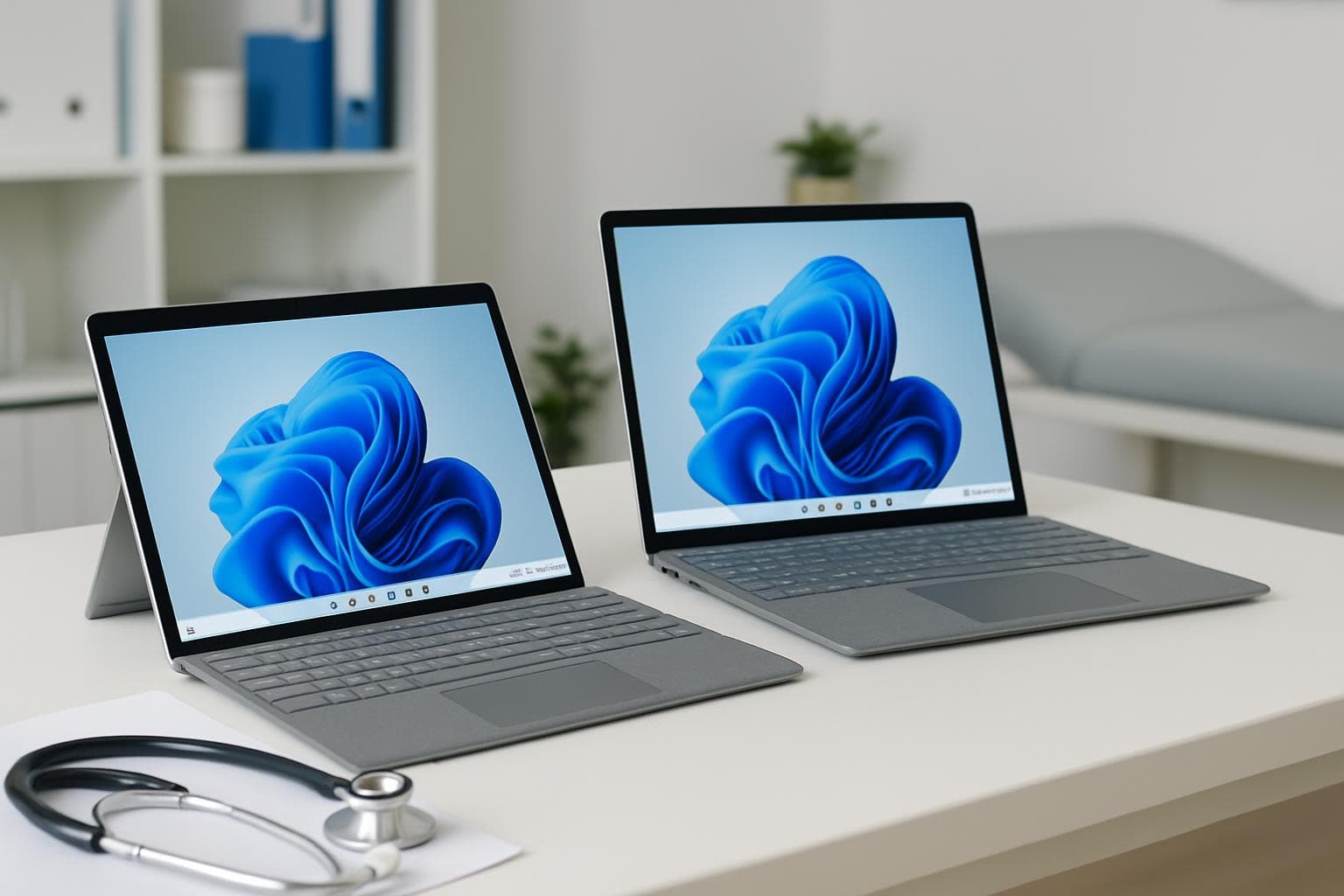
Microsoft Surface devices are excellent business tools, but like any hardware, they need proper maintenance. Whether you're running Surface Pro, Surface Laptop, or Surface Go devices in your practice or office, here are the most common issues we see — and how to fix them.
💡
Regular firmware updates and proper thermal management are the two most important things you can do to keep Surface devices reliable in a business environment.
Common Surface Issues in Business Environments
Firmware and Driver Updates
Microsoft releases Surface firmware updates through Windows Update, but they don't always install automatically. Outdated firmware can cause:
- Wi-Fi disconnections
- Sleep/wake problems (the dreaded "Surface won't wake up" issue)
- Battery drain in sleep mode
- Touchscreen responsiveness issues
- Docking station compatibility problems
Overheating and Thermal Throttling
Surface devices are fanless (Pro, Go) or have minimal cooling (Laptop). In warm environments — particularly common in Perth — they can throttle performance to manage heat.
- Keep devices away from direct sunlight and heat sources
- Don't block ventilation areas (the back of Surface Pro gets particularly warm)
- Close unnecessary browser tabs and applications
- Consider a laptop stand for better airflow
- In clinical environments, avoid placing devices near heat-generating medical equipment
Docking Station Issues
Surface Dock and third-party USB-C docks can be temperamental. Common fixes:
- Update dock firmware using Microsoft's Surface Dock Updater tool
- Use the specific USB-C port recommended for docking (not all ports are equal)
- If dual monitors aren't working, check that display drivers are current
- Power cycle the dock (unplug for 30 seconds) when monitors aren't detected
Battery Degradation
Surface batteries typically last 2-3 years of heavy business use before noticeable degradation. Monitor battery health with:
powercfg /batteryreport
This generates an HTML report showing original capacity vs. current capacity. Replace the device or battery when capacity drops below 60%.
Best Practices for Business Surface Deployments
- Enable BitLocker encryption — Mandatory for any device handling sensitive data
- Configure Windows Hello — Facial recognition or fingerprint login for quick, secure access
- Set up Intune — Remote management, policy enforcement, and remote wipe capability
- Standardise accessories — Same keyboard, mouse, and dock for all users simplifies support
- Keep spares — For practices that depend on Surface devices, having a spare configured and ready avoids downtime
SkyComm Surface Support
SkyComm manages Surface device fleets for medical practices and businesses across Perth. We handle procurement, configuration, deployment, firmware management, and hardware support — ensuring your devices stay reliable and secure.
Having Surface issues? Contact SkyComm on 1800 957 977.
SkyComm IT Solutions
Perth's leading medical and business IT support provider. Trusted by healthcare practices, law firms, and businesses across Western Australia for over 20 years.